Printing Designed for Modern Professionals
Whether you’re finalizing a contract, printing marketing materials, or preparing documents for an important meeting, NuvoDesk offers high-quality, on-demand printing solutions to fit your needs. Our system ensures that printing is seamless and secure, allowing you to focus on your work without interruption.
5 Easy Setps
Once you become a NuvoDesk member, you will receive an email from PaperCut with:
- Your Username & Password – Used to log in.
- Your Identity Number (PIN Code) – Used to release print jobs.
Check Your Email
Click the link below based on your device:
- Windows: Download Link
- Mac: Download Link
- Chromebook: Download Link
Install the Printer on Your Device
When printing, select the correct printer:
- EastPrinter
- WestPrinter
Select the one closest to you for the best experience.
Choose the Right Printera
Ensure you are logged into PaperCut using your assigned credentials.
- Open your document.
- Press CTRL + P (Windows) or CMD + P (Mac).
- Select the correct printer (EastPrinter or WestPrinter).
- Adjust print settings:
- Color or Black & White
- Single-Sided or Double-Sided
- Paper Size & Orientation
- Click Print – Your job is now in the queue.
Send Your Print Job
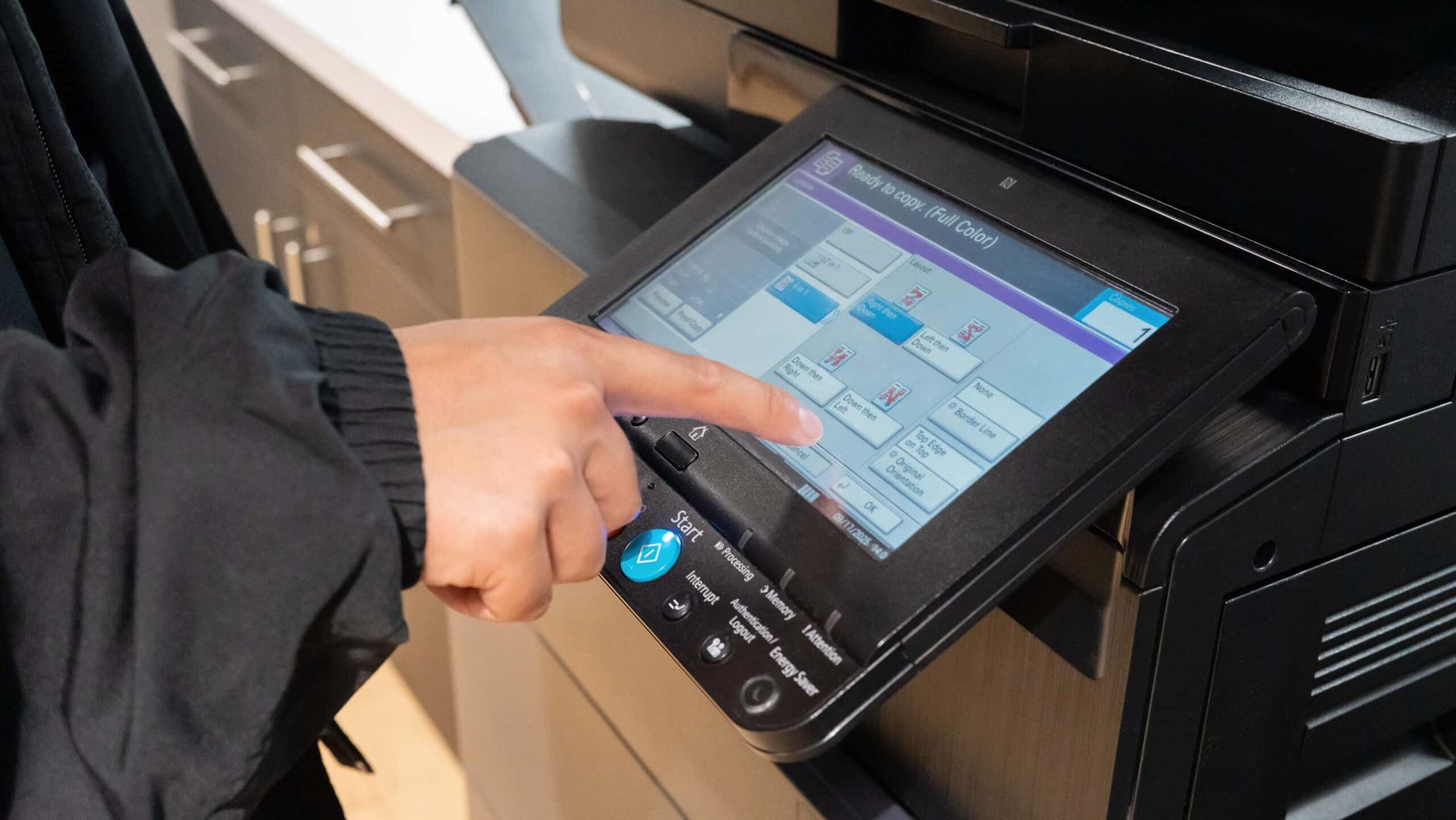
- Go to the printer you selected.
- Enter your PIN Code on the touch screen.
- Select your document from the list.
- Press Print to release your job.
Your document is now printed.
Pick Up Your Print
Troubleshooting & Support
Having Issues?
Check out PaperCut’s step-by-step guide on how to install each version of the software:
Try these quick fixes if you experience issues:
- Ensure your device is connected to NuvoDesk’s secure Wi-Fi network.
- Restart your device and try printing again.
- Check your account details and make sure your PIN Code is correct.
- Confirm your print job was sent to the correct printer.
If you are still having trouble, our team is happy to assist!
Additional Printing Features
For Android users, PaperCut also offers a Google Play app, which can be found here. Need a walk-through? The helpful videos below will guide you through the process.
Secure Printing
All print jobs require PIN authentication, ensuring that only you can retrieve your documents.
Flexible Print Options
Choose between color or black & white, paper sizes, and double-sided printing to fit your needs.
Multiple Printer Access Points
Print from anywhere in NuvoDesk, with strategically placed printers for convenience.
FAQ: Frequently Asked Questions
How do I install the printer on my device?
Follow the Download & Install Printer section above, where links for Windows, Mac, and mobile devices are provided. If you need assistance, refer to our step-by-step guide or visit the front desk.
Can I print from my phone or tablet?
Yes! Our mobility printing feature allows you to print directly from your mobile device. Simply install the PaperCut app and follow the instructions.
What if I forget my PIN code?
If you forget your PIN Code, visit the front desk for assistance or check your original PaperCut setup email, where your login credentials were provided.
How do I print in color?
When sending your print job, select “Color Printing” in the print settings before finalizing your document.
Can I print double-sided to save paper?
Yes! Our printers support double-sided printing to reduce paper waste. Simply choose this option in your print settings.
Why isn’t my document printing?
Check the following:
- Ensure you selected the correct printer location (EastPrinter or WestPrinter).
- Confirm your document was successfully sent to the queue.
- Make sure your PIN Code is correct when retrieving your document.
- Ensure your device is connected to NuvoDesk’s Wi-Fi network.
What happens if I send the wrong document to print?
You can cancel the job from your print queue before releasing it to the printer. If the document has already been printed, you will need to print the correct file separately.
How do I check my print balance or manage my account?
Log in to the PaperCut portal (link provided in your setup email) to view your print usage, check your balance, and manage account settings.
Need additional support?
Your printing support team is here.
- During business hours: Visit us at the front desk for in-person assistance.
- After hours: Email us at office@nuvodesk.com with any questions or comments.